
- Thread starter
- #271
Sponsored
I have a hybrid XLT and Lariat. Everything seems to be slower in the XLT than the LARIAT, brings up the question "Is the main CPU identical in all trucks with the clock speed set slower in the XLT or if different cpu's can main boards be swapped?".That's a really good point, I forgot about that. I had a XLT and Sync3 on my Lariat was a big step up so Sync 4 is a giant step up. Ford Connected Audio felt like 2005.
Yeah, I feel like this has to be a software bug. Two of my APIMs running the same software having the same issue while one running much much older software doesn’t have that issue at all?
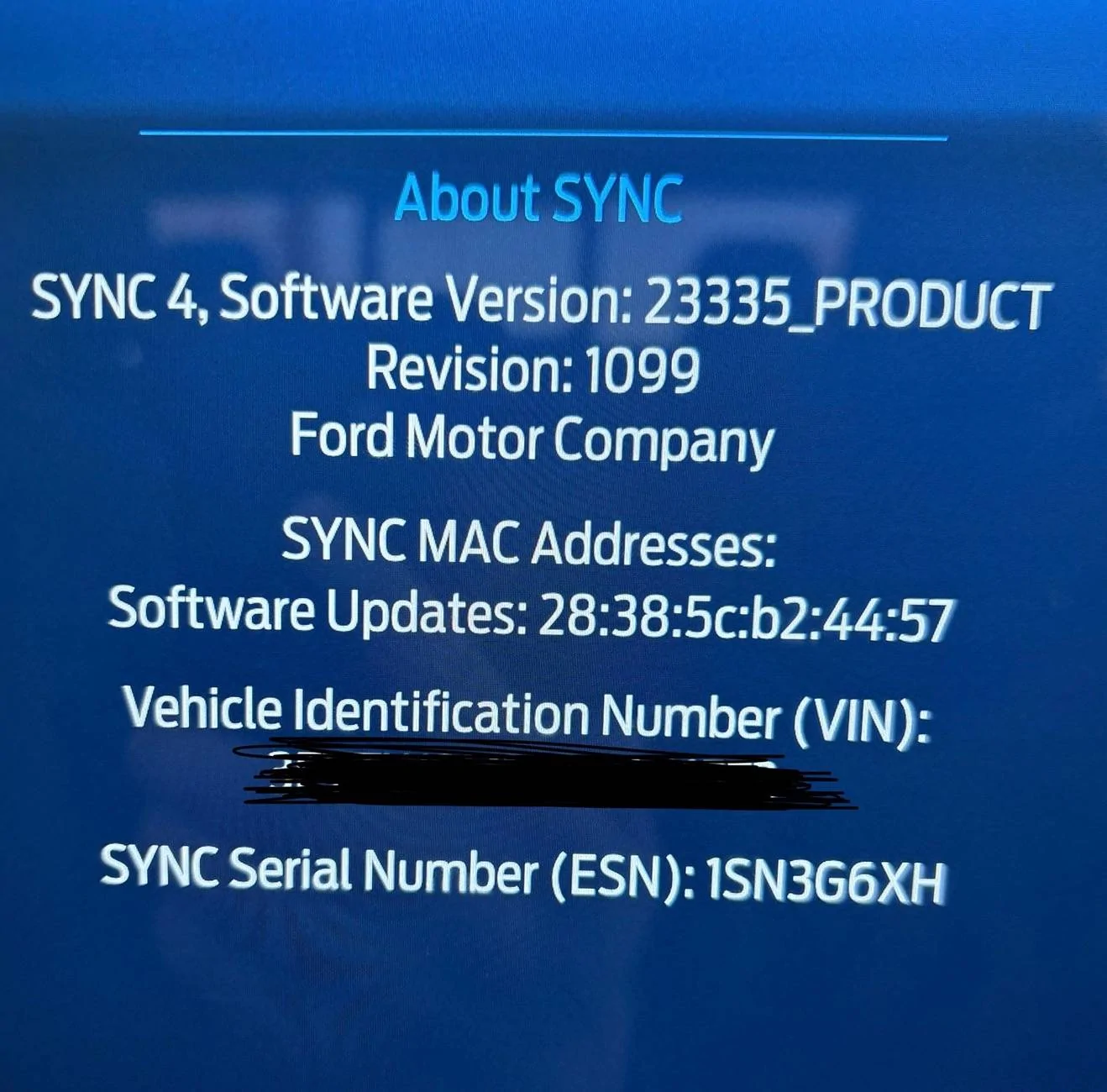
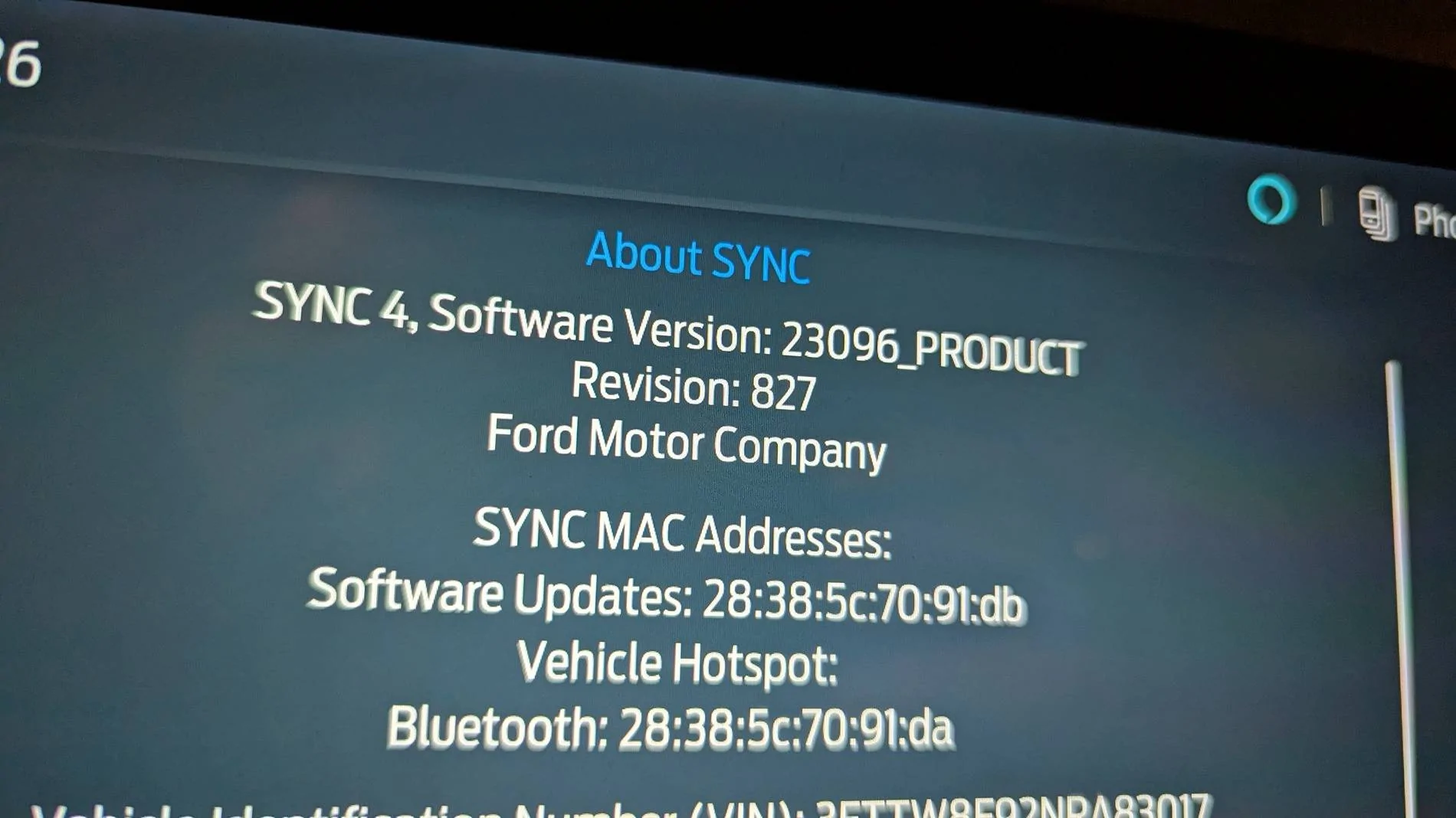
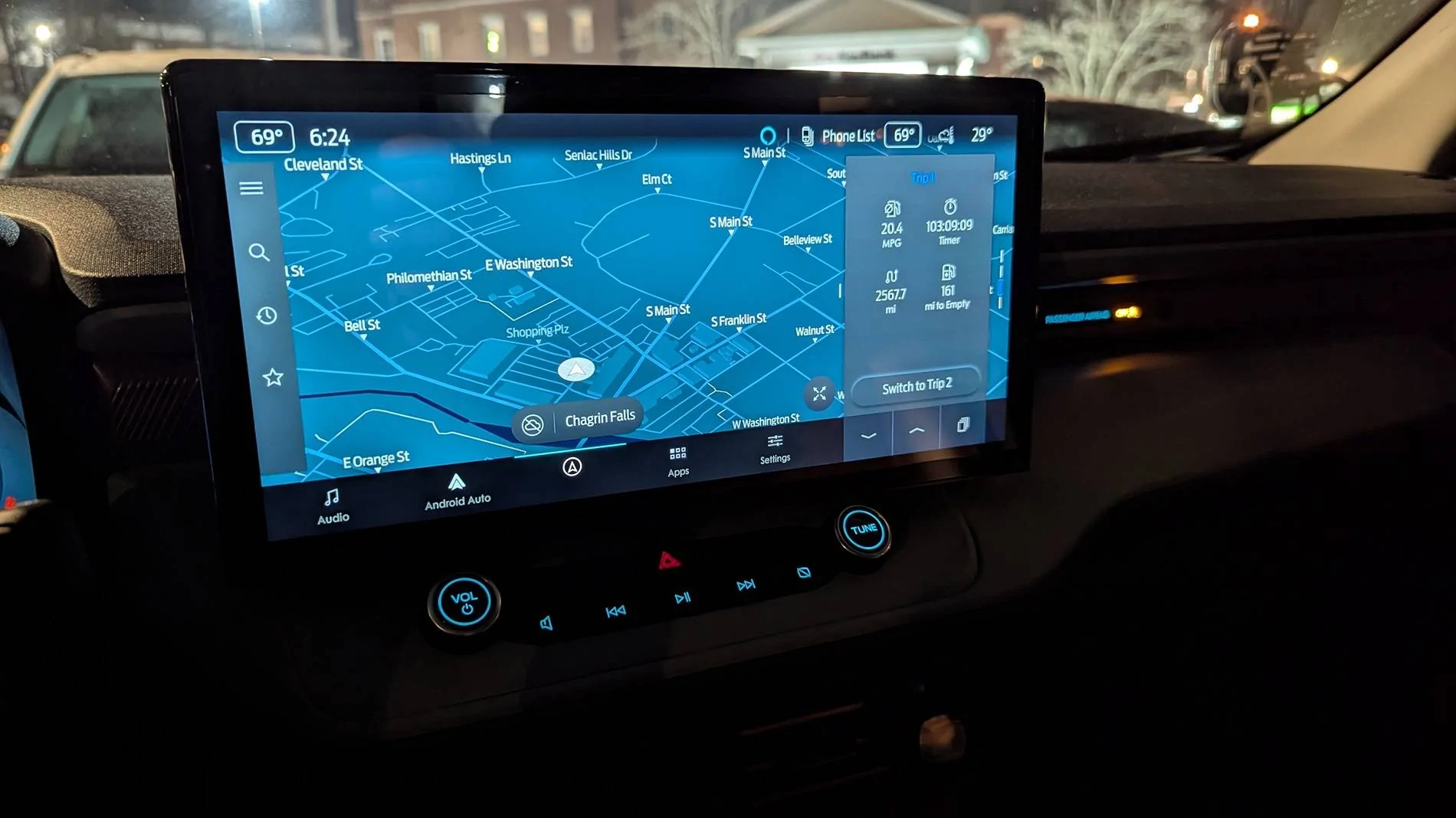
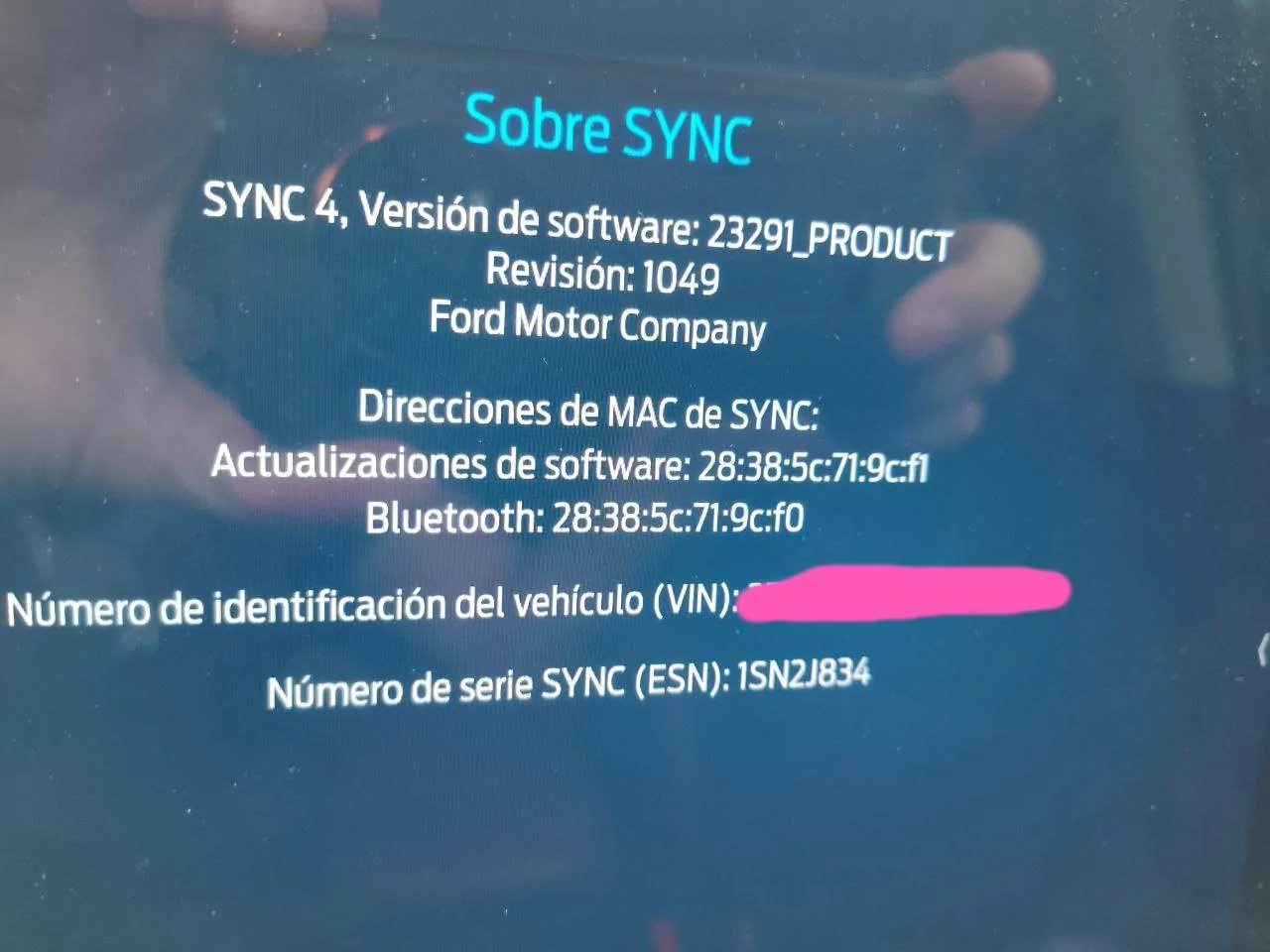
What software version are you guys running? Both of the 2024 APIMs I had that are acting up are running this one. Trying to figure out if it’s a hardware revision that caused some communication issues with the ACM or a possible software bug. Would be helpful to let others know what to avoid in the future!
![]()
It looks great!
No trips showed up once they started talk to each other. I did have to modify some abs module stuff to get drive modes "working". There's a few threads here on it .It looks great!
I bought an Explorer 2022 cluster that I haven't installed yet. Did you have to change anything in the configuration to get the trips ?
All this and no final pics lol. Nice write up glad you got it all working !After collecting information from lots of people on this thread (especially Billzilla15, 801Maverick801, pantera156, yeahiguessman, and Redneck Garage’s youtube videos…thank you everyone!!), I am happy to report that I now have a fully functional, all knobs and buttons working, no audio issues, working nav, and working reverse camera SYNC4 swap!
My Dad (Skilled Trade Ford retiree) and I sunk a considerable amount of time into this project and we wanted to give back to this great community. Here are the steps and “gotchas” we ran into and I hope this is helpful for those still trying to get things sorted out.
Background: I started with a stock 2023 Maverick Hybrid Lariat w/ Lux package & Co-pilot360, factory navigation, and B&O sound system.
- Obtain necessary parts (basically what others have stated here, but this is what I used)
- 2023 Ford Escape APIM SYNC4 (P/N: PJ6T-14G670-BFP)
- 2022 Ford Transit 12in display w/HOUSING (P/N: NK4T-18B955-FC3UAW)
- SYNC3 54pin passthrough cable (Amazon)
- Screen Power Wire (P/N: 6U2Z14S411JB)
- Screen Data Cable (P/N: ML3Z14D202B)
- Aluminum flat stock (1/8in)
- M5-0.8x30mm bolts (for custom bracket to dash mounting, factory thread patten)
- M5x8 bolts (for Transit screen to bracket mounting, you can use what you have)
- 25mm Nylon Standoff (M5 center hole)
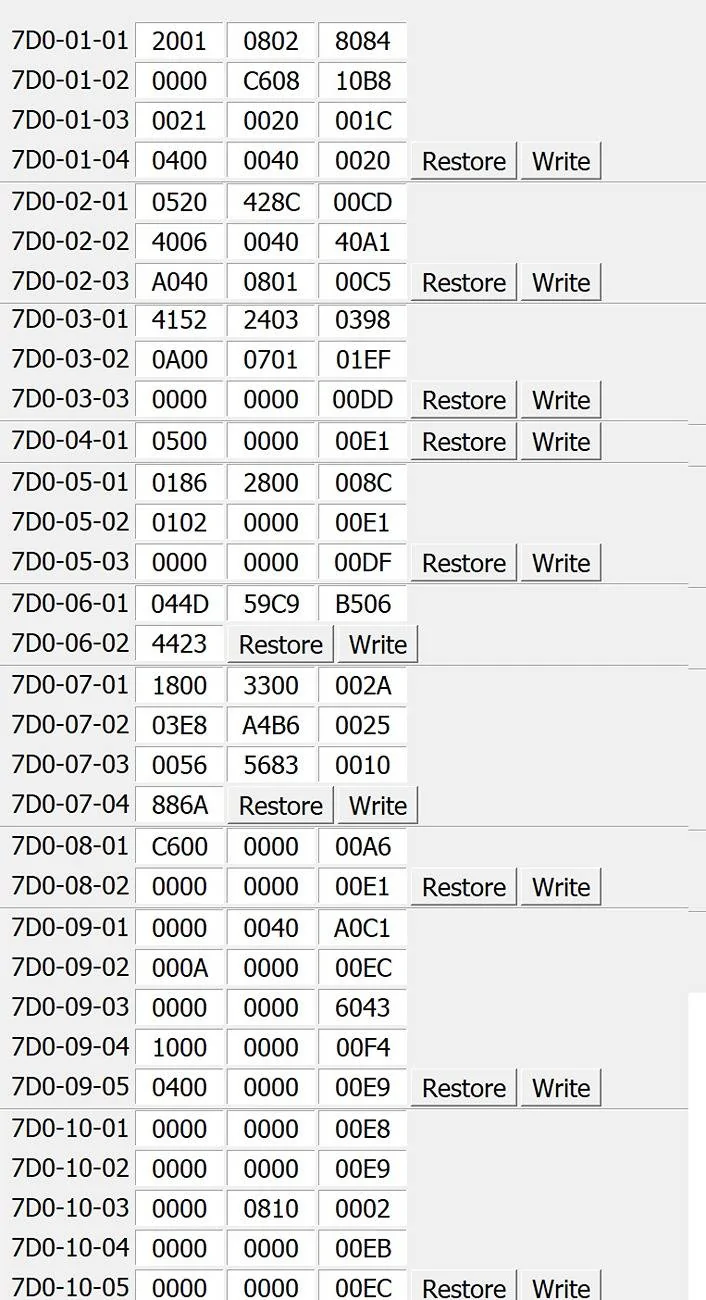
- Take a photo or use FORscan to make a backup of your current SYNC3-3.4 APIM AsBuilt data (DO NOT SKIP THIS STEP)
- The HEX code page with the strings of numbers/letters for the APIM is what we are interested in here.
- Use this piece of software from @consp GitHub repository (Thank you sir!!) https://github.com/consp/apim-asbuilt-decode/releases
![]()
- You can open you SYNC3-3.4 APIM AsBuilt ABT file from FORscan and make notes of your configuration as shown. This will help tremendously in knowing what to set when programming SYNC4 APIM. The settings and values Ford has provided are NOT intuitive and there is a lot of missing context. Ex. Often times “Disable” value is what is needed for a setting if you already have a hard-button on your truck.
- Prepare your SYNC3 passthrough wiring harness
- NOTE: This is the piece (as many other have mentioned) is what caused me the most issues. I have a non-functioning reverse camera that was difficult to diagnose because of this cheap harness. I highly recommend depinning, and slightly bending the locking tab/barb on the pins outward for every pin and reinstalling. These pins are exceptionally loose from the factory apparently, and my camera pin was wired correctly but not tight enough to make a connection!
![]()
- Disassemble the Transit screen from the housing and snip off the three little black “pins” sticking out from the bottom. Not doing this can make mounting the screen squarely to the dash difficult, at least for me.
- While the housing is off of the screen, remove the metal screen bracket from the LCD carefully, and cut off enough of the central mounting tab so it is at least flush with the outside plastic housing when reinstalled. This allows you mount the screen more securely later.
![]()
![]()
- I watched a couple of YouTube videos (thank you @ Redneck Garage) for the teardown and physical install.
- No one was kidding, removed the factory APIM from the dash was a NIGHTMARE. It can and will cut you, scratch up your plastic interior, and came close to nicking some nearby wiring harnesses during removal/install.
- I found carefully rotating the APIM 90deg left of right so you can get better access to unplug cables…things will still be very tight to get a hand in for unplugging.
- Plug in all new parts (screen, passthrough harness, APIM, climate knobs, etc…) carefully and turn ignition to ON.
- Make a FORscan APIM backup (image and file) of the SYNC4 APIMs AsBuilt (This is handy for troubleshooting later and for the values in memory block 10, which isn’t fully defined in the analysis software from GitHub yet).
- Does the screen boot up???
- If YES, then success! Proceed with install
- If NO, then your passthrough wiring harness likely has a fault
- Use the aluminum bar stock to layout where the CENTER dash mounting hole from the OEM screen will be, and also the PASSENGER side mounting hole for stability.
- This is very important for Audio quality…the center screw hole in the dash from the original screen is the only grounded mount to the car frame (image). This made a pretty big difference for me.
- We chose to use our own M5x30mm bolts to mounting our cut aluminum bar stock using through holes, and then drilled and tapped hole on the ends for the Transit screen mount after tracing the layout.
![]()
![]()
- If you cut off the center metal tab on the screen housing mount, you can reinstall the factory begin screen tray without any modification.
- We used some 3/8-1/2in sections of heatshrink tubing to fill the gaps next to the screen until I can 3D print something (maybe at a later date).
![]()
- At this point everything should be reinstalled and new screen mounted.
- Using FORscan, I started with Billzilla15’s (this helped a ton, thanks again!) to get things in a mostly working starting state.
- As Billzilla15 mentioned, this is VERY SPECIFIC to your vehicle. That posted AsBuilt is setup for an AWD EcoBoost Mav, and it mostly worked with my Hybrid, but fuel efficiency, switch to electric, and braking seemed a little “off” until I tweaked to for my Hybrid Mav (as expected).
- I used the software from consp’s GitHub to match all of the setting that I could from my factory APIM SYNC3 AsBuilt to make a SYNC4 APIM AsBuilt for my vehicle.
- The major tweak for me was under the “Visual Design” setting to “12in Landscape”, and setting “HEV/Hybrid” to “Enable/HEV”.
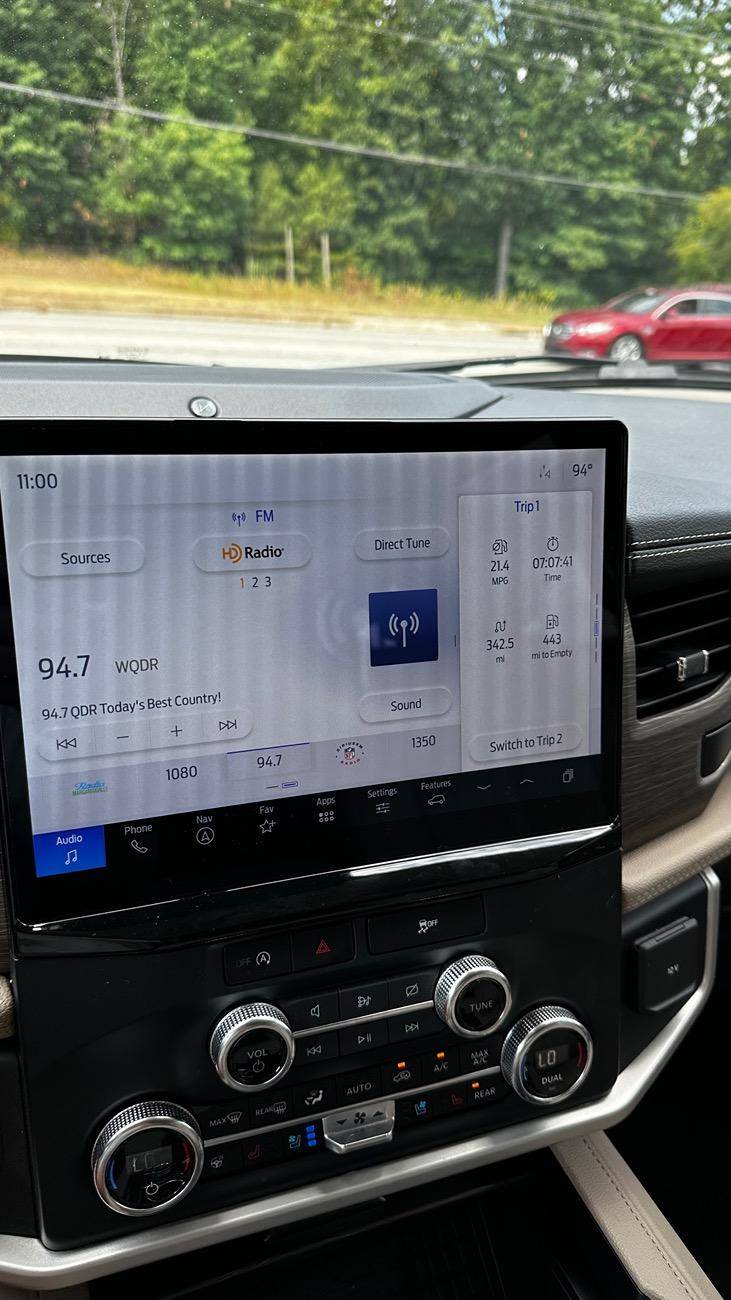
- Success!! The following work as they did from factory:
- Volume knob works and show volume number correctly on new display.
- Climate controls and fan speed shows numbers on display when changed.
- Heated seats and heated steering wheel work.
- Reverse Camera is bright, clear, and works perfectly with proximity sensors.
- Audio plays clearly and without static, pops, or cracks (woot!)
- Navigation/GPS is spot on
- Ambient Lighting works as original.
- CarPlay works flawlessly.
- FordPass App allows all of the same functionality as factory. (Must HotSwap already app connected factory APIM to SYNC4 APIM….DO NOT FACTORY RESET SYNC or you have to tear down, reinstall factory APIM, reconnect app, then reinstall SYNC4 hardware!)
- Door Keypad and Intelligent Access work
- You cannot get OTA SYNC4 updates now.
- HD Radio works
This would not have been possible without all of the information contributed, so thanks to everyone again! Feel free to ask any questions and I’ll see if I can help.
-----------------------------------------------------
Here is my SYNC4 APIM AsBuilt for the above, hopefully it helps someone!
;Block 1
7D0G1G1: A081-4804-80C6
7D0G1G2: 0000-C609-38E1
7D0G1G3: 0001-0020-0C08
7D0G1G4: 02E0-00C0-007E
;Block 2
7D0G2G1: 0520-000A-0009
7D0G2G2: 02C0-00B0-004D
7D0G2G3: A040-0000-00BC
;Block 3
7D0G3G1: 5553-1503-039E
7D0G3G2: 0B00-073E-012D
7D0G3G3: 0000-0000-00DD
;Block 4
7D0G4G1: 0500-0000-00E1
;Block 5
7D0G5G1: 2102-3800-0038
7D0G5G2: 0000-0000-00DE
7D0G5G3: 0000-0000-00DF
;Block 6
7D0G6G1: 1806-1810-2F53
7D0G6G2: 4423
;Block 7
7D0G7G1: 1800-3300-002A
7D0G7G2: 03E8-A4B6-0025
7D0G7G3: 0056-5680-000D
7D0G7G4: 886A
;Block 8
7D0G8G1: C000-0001-00A1
7D0G8G2: 0000-0000-00E1
;Block 9
7D0G9G1: 0613-422C-F65E
7D0G9G2: 606C-5E00-0410
7D0G9G3: 0240-0000-0025
7D0G9G4: 1040-0000-0034
7D0G9G5: 0000-0000-00E5
;Block 10
7D0GAG1: 0000-0000-00E8
7D0GAG2: 0000-0000-00E9
7D0GAG3: 0000-0000-00EA
7D0GAG4: 0000-0000-00EB
7D0GAG5: 0000-0000-00EC
HAHA, I may have gotten excited when it was all working and forgot to take final pics lol. I'll post some later today. Thanks!!All this and no final pics lol. Nice write up glad you got it all working !
Thanks for the awesome write up. What was the final cost of all parts?After collecting information from lots of people on this thread (especially Billzilla15, 801Maverick801, pantera156, yeahiguessman, and Redneck Garage’s youtube videos…thank you everyone!!), I am happy to report that I now have a fully functional, all knobs and buttons working, no audio issues, working nav, and working reverse camera SYNC4 swap!
My Dad (Skilled Trade Ford retiree) and I sunk a considerable amount of time into this project and we wanted to give back to this great community. Here are the steps and “gotchas” we ran into and I hope this is helpful for those still trying to get things sorted out.
Background: I started with a stock 2023 Maverick Hybrid Lariat w/ Lux package & Co-pilot360, factory navigation, and B&O sound system.
- Obtain necessary parts (basically what others have stated here, but this is what I used)
- 2023 Ford Escape APIM SYNC4 (P/N: PJ6T-14G670-BFP)
- 2022 Ford Transit 12in display w/HOUSING (P/N: NK4T-18B955-FC3UAW)
- SYNC3 54pin passthrough cable (Amazon)
- Screen Power Wire (P/N: 6U2Z14S411JB)
- Screen Data Cable (P/N: ML3Z14D202B)
- Aluminum flat stock (1/8in)
- M5-0.8x30mm bolts (for custom bracket to dash mounting, factory thread patten)
- M5x8 bolts (for Transit screen to bracket mounting, you can use what you have)
- 25mm Nylon Standoff (M5 center hole)
- Take a photo or use FORscan to make a backup of your current SYNC3-3.4 APIM AsBuilt data (DO NOT SKIP THIS STEP)
- The HEX code page with the strings of numbers/letters for the APIM is what we are interested in here.
- Use this piece of software from @consp GitHub repository (Thank you sir!!) https://github.com/consp/apim-asbuilt-decode/releases
![]()
- You can open you SYNC3-3.4 APIM AsBuilt ABT file from FORscan and make notes of your configuration as shown. This will help tremendously in knowing what to set when programming SYNC4 APIM. The settings and values Ford has provided are NOT intuitive and there is a lot of missing context. Ex. Often times “Disable” value is what is needed for a setting if you already have a hard-button on your truck.
- Prepare your SYNC3 passthrough wiring harness
- NOTE: This is the piece (as many other have mentioned) is what caused me the most issues. I have a non-functioning reverse camera that was difficult to diagnose because of this cheap harness. I highly recommend depinning, and slightly bending the locking tab/barb on the pins outward for every pin and reinstalling. These pins are exceptionally loose from the factory apparently, and my camera pin was wired correctly but not tight enough to make a connection!
![]()
- Disassemble the Transit screen from the housing and snip off the three little black “pins” sticking out from the bottom. Not doing this can make mounting the screen squarely to the dash difficult, at least for me.
- While the housing is off of the screen, remove the metal screen bracket from the LCD carefully, and cut off enough of the central mounting tab so it is at least flush with the outside plastic housing when reinstalled. This allows you mount the screen more securely later.
![]()
![]()
- I watched a couple of YouTube videos (thank you @ Redneck Garage) for the teardown and physical install.
- No one was kidding, removed the factory APIM from the dash was a NIGHTMARE. It can and will cut you, scratch up your plastic interior, and came close to nicking some nearby wiring harnesses during removal/install.
- I found carefully rotating the APIM 90deg left of right so you can get better access to unplug cables…things will still be very tight to get a hand in for unplugging.
- Plug in all new parts (screen, passthrough harness, APIM, climate knobs, etc…) carefully and turn ignition to ON.
- Make a FORscan APIM backup (image and file) of the SYNC4 APIMs AsBuilt (This is handy for troubleshooting later and for the values in memory block 10, which isn’t fully defined in the analysis software from GitHub yet).
- Does the screen boot up???
- If YES, then success! Proceed with install
- If NO, then your passthrough wiring harness likely has a fault
- Use the aluminum bar stock to layout where the CENTER dash mounting hole from the OEM screen will be, and also the PASSENGER side mounting hole for stability.
- This is very important for Audio quality…the center screw hole in the dash from the original screen is the only grounded mount to the car frame (image). This made a pretty big difference for me.
- We chose to use our own M5x30mm bolts to mounting our cut aluminum bar stock using through holes, and then drilled and tapped hole on the ends for the Transit screen mount after tracing the layout.
![]()
![]()
- If you cut off the center metal tab on the screen housing mount, you can reinstall the factory begin screen tray without any modification.
- We used some 3/8-1/2in sections of heatshrink tubing to fill the gaps next to the screen until I can 3D print something (maybe at a later date).
![]()
- At this point everything should be reinstalled and new screen mounted.
- Using FORscan, I started with Billzilla15’s (this helped a ton, thanks again!) to get things in a mostly working starting state.
- As Billzilla15 mentioned, this is VERY SPECIFIC to your vehicle. That posted AsBuilt is setup for an AWD EcoBoost Mav, and it mostly worked with my Hybrid, but fuel efficiency, switch to electric, and braking seemed a little “off” until I tweaked to for my Hybrid Mav (as expected).
- I used the software from consp’s GitHub to match all of the setting that I could from my factory APIM SYNC3 AsBuilt to make a SYNC4 APIM AsBuilt for my vehicle.
- The major tweak for me was under the “Visual Design” setting to “12in Landscape”, and setting “HEV/Hybrid” to “Enable/HEV”.
- Success!! The following work as they did from factory:
- Volume knob works and show volume number correctly on new display.
- Climate controls and fan speed shows numbers on display when changed.
- Heated seats and heated steering wheel work.
- Reverse Camera is bright, clear, and works perfectly with proximity sensors.
- Audio plays clearly and without static, pops, or cracks (woot!)
- Navigation/GPS is spot on
- Ambient Lighting works as original.
- CarPlay works flawlessly.
- FordPass App allows all of the same functionality as factory. (Must HotSwap already app connected factory APIM to SYNC4 APIM….DO NOT FACTORY RESET SYNC or you have to tear down, reinstall factory APIM, reconnect app, then reinstall SYNC4 hardware!)
- Door Keypad and Intelligent Access work
- You cannot get OTA SYNC4 updates now.
- HD Radio works
This would not have been possible without all of the information contributed, so thanks to everyone again! Feel free to ask any questions and I’ll see if I can help.
-----------------------------------------------------
Here is my SYNC4 APIM AsBuilt for the above, hopefully it helps someone!
;Block 1
7D0G1G1: A081-4804-80C6
7D0G1G2: 0000-C609-38E1
7D0G1G3: 0001-0020-0C08
7D0G1G4: 02E0-00C0-007E
;Block 2
7D0G2G1: 0520-000A-0009
7D0G2G2: 02C0-00B0-004D
7D0G2G3: A040-0000-00BC
;Block 3
7D0G3G1: 5553-1503-039E
7D0G3G2: 0B00-073E-012D
7D0G3G3: 0000-0000-00DD
;Block 4
7D0G4G1: 0500-0000-00E1
;Block 5
7D0G5G1: 2102-3800-0038
7D0G5G2: 0000-0000-00DE
7D0G5G3: 0000-0000-00DF
;Block 6
7D0G6G1: 1806-1810-2F53
7D0G6G2: 4423
;Block 7
7D0G7G1: 1800-3300-002A
7D0G7G2: 03E8-A4B6-0025
7D0G7G3: 0056-5680-000D
7D0G7G4: 886A
;Block 8
7D0G8G1: C000-0001-00A1
7D0G8G2: 0000-0000-00E1
;Block 9
7D0G9G1: 0613-422C-F65E
7D0G9G2: 606C-5E00-0410
7D0G9G3: 0240-0000-0025
7D0G9G4: 1040-0000-0034
7D0G9G5: 0000-0000-00E5
;Block 10
7D0GAG1: 0000-0000-00E8
7D0GAG2: 0000-0000-00E9
7D0GAG3: 0000-0000-00EA
7D0GAG4: 0000-0000-00EB
7D0GAG5: 0000-0000-00EC
Nice work!After collecting information from lots of people on this thread (especially Billzilla15, 801Maverick801, pantera156, yeahiguessman, and Redneck Garage’s youtube videos…thank you everyone!!), I am happy to report that I now have a fully functional, all knobs and buttons working, no audio issues, working nav, and working reverse camera SYNC4 swap!
My Dad (Skilled Trade Ford retiree) and I sunk a considerable amount of time into this project and we wanted to give back to this great community. Here are the steps and “gotchas” we ran into and I hope this is helpful for those still trying to get things sorted out.
Background: I started with a stock 2023 Maverick Hybrid Lariat w/ Lux package & Co-pilot360, factory navigation, and B&O sound system.
- Obtain necessary parts (basically what others have stated here, but this is what I used)
- 2023 Ford Escape APIM SYNC4 (P/N: PJ6T-14G670-BFP)
- 2022 Ford Transit 12in display w/HOUSING (P/N: NK4T-18B955-FC3UAW)
- SYNC3 54pin passthrough cable (Amazon)
- Screen Power Wire (P/N: 6U2Z14S411JB)
- Screen Data Cable (P/N: ML3Z14D202B)
- Aluminum flat stock (1/8in)
- M5-0.8x30mm bolts (for custom bracket to dash mounting, factory thread patten)
- M5x8 bolts (for Transit screen to bracket mounting, you can use what you have)
- 25mm Nylon Standoff (M5 center hole)
- Take a photo or use FORscan to make a backup of your current SYNC3-3.4 APIM AsBuilt data (DO NOT SKIP THIS STEP)
- The HEX code page with the strings of numbers/letters for the APIM is what we are interested in here.
- Use this piece of software from @consp GitHub repository (Thank you sir!!) https://github.com/consp/apim-asbuilt-decode/releases
![]()
- You can open you SYNC3-3.4 APIM AsBuilt ABT file from FORscan and make notes of your configuration as shown. This will help tremendously in knowing what to set when programming SYNC4 APIM. The settings and values Ford has provided are NOT intuitive and there is a lot of missing context. Ex. Often times “Disable” value is what is needed for a setting if you already have a hard-button on your truck.
- Prepare your SYNC3 passthrough wiring harness
- NOTE: This is the piece (as many other have mentioned) is what caused me the most issues. I have a non-functioning reverse camera that was difficult to diagnose because of this cheap harness. I highly recommend depinning, and slightly bending the locking tab/barb on the pins outward for every pin and reinstalling. These pins are exceptionally loose from the factory apparently, and my camera pin was wired correctly but not tight enough to make a connection!
![]()
- Disassemble the Transit screen from the housing and snip off the three little black “pins” sticking out from the bottom. Not doing this can make mounting the screen squarely to the dash difficult, at least for me.
- While the housing is off of the screen, remove the metal screen bracket from the LCD carefully, and cut off enough of the central mounting tab so it is at least flush with the outside plastic housing when reinstalled. This allows you mount the screen more securely later.
![]()
![]()
- I watched a couple of YouTube videos (thank you @ Redneck Garage) for the teardown and physical install.
- No one was kidding, removed the factory APIM from the dash was a NIGHTMARE. It can and will cut you, scratch up your plastic interior, and came close to nicking some nearby wiring harnesses during removal/install.
- I found carefully rotating the APIM 90deg left of right so you can get better access to unplug cables…things will still be very tight to get a hand in for unplugging.
- Plug in all new parts (screen, passthrough harness, APIM, climate knobs, etc…) carefully and turn ignition to ON.
- Make a FORscan APIM backup (image and file) of the SYNC4 APIMs AsBuilt (This is handy for troubleshooting later and for the values in memory block 10, which isn’t fully defined in the analysis software from GitHub yet).
- Does the screen boot up???
- If YES, then success! Proceed with install
- If NO, then your passthrough wiring harness likely has a fault
- Use the aluminum bar stock to layout where the CENTER dash mounting hole from the OEM screen will be, and also the PASSENGER side mounting hole for stability.
- This is very important for Audio quality…the center screw hole in the dash from the original screen is the only grounded mount to the car frame (image). This made a pretty big difference for me.
- We chose to use our own M5x30mm bolts to mounting our cut aluminum bar stock using through holes, and then drilled and tapped hole on the ends for the Transit screen mount after tracing the layout.
![]()
![]()
- If you cut off the center metal tab on the screen housing mount, you can reinstall the factory begin screen tray without any modification.
- We used some 3/8-1/2in sections of heatshrink tubing to fill the gaps next to the screen until I can 3D print something (maybe at a later date).
![]()
- At this point everything should be reinstalled and new screen mounted.
- Using FORscan, I started with Billzilla15’s (this helped a ton, thanks again!) to get things in a mostly working starting state.
- As Billzilla15 mentioned, this is VERY SPECIFIC to your vehicle. That posted AsBuilt is setup for an AWD EcoBoost Mav, and it mostly worked with my Hybrid, but fuel efficiency, switch to electric, and braking seemed a little “off” until I tweaked to for my Hybrid Mav (as expected).
- I used the software from consp’s GitHub to match all of the setting that I could from my factory APIM SYNC3 AsBuilt to make a SYNC4 APIM AsBuilt for my vehicle.
- The major tweak for me was under the “Visual Design” setting to “12in Landscape”, and setting “HEV/Hybrid” to “Enable/HEV”.
- Success!! The following work as they did from factory:
- Volume knob works and show volume number correctly on new display.
- Climate controls and fan speed shows numbers on display when changed.
- Heated seats and heated steering wheel work.
- Reverse Camera is bright, clear, and works perfectly with proximity sensors.
- Audio plays clearly and without static, pops, or cracks (woot!)
- Navigation/GPS is spot on
- Ambient Lighting works as original.
- CarPlay works flawlessly.
- FordPass App allows all of the same functionality as factory. (Must HotSwap already app connected factory APIM to SYNC4 APIM….DO NOT FACTORY RESET SYNC or you have to tear down, reinstall factory APIM, reconnect app, then reinstall SYNC4 hardware!)
- Door Keypad and Intelligent Access work
- You cannot get OTA SYNC4 updates now.
- HD Radio works
This would not have been possible without all of the information contributed, so thanks to everyone again! Feel free to ask any questions and I’ll see if I can help.
-----------------------------------------------------
Here is my SYNC4 APIM AsBuilt for the above, hopefully it helps someone!
;Block 1
7D0G1G1: A081-4804-80C6
7D0G1G2: 0000-C609-38E1
7D0G1G3: 0001-0020-0C08
7D0G1G4: 02E0-00C0-007E
;Block 2
7D0G2G1: 0520-000A-0009
7D0G2G2: 02C0-00B0-004D
7D0G2G3: A040-0000-00BC
;Block 3
7D0G3G1: 5553-1503-039E
7D0G3G2: 0B00-073E-012D
7D0G3G3: 0000-0000-00DD
;Block 4
7D0G4G1: 0500-0000-00E1
;Block 5
7D0G5G1: 2102-3800-0038
7D0G5G2: 0000-0000-00DE
7D0G5G3: 0000-0000-00DF
;Block 6
7D0G6G1: 1806-1810-2F53
7D0G6G2: 4423
;Block 7
7D0G7G1: 1800-3300-002A
7D0G7G2: 03E8-A4B6-0025
7D0G7G3: 0056-5680-000D
7D0G7G4: 886A
;Block 8
7D0G8G1: C000-0001-00A1
7D0G8G2: 0000-0000-00E1
;Block 9
7D0G9G1: 0613-422C-F65E
7D0G9G2: 606C-5E00-0410
7D0G9G3: 0240-0000-0025
7D0G9G4: 1040-0000-0034
7D0G9G5: 0000-0000-00E5
;Block 10
7D0GAG1: 0000-0000-00E8
7D0GAG2: 0000-0000-00E9
7D0GAG3: 0000-0000-00EA
7D0GAG4: 0000-0000-00EB
7D0GAG5: 0000-0000-00EC
HAHA, I may have gotten excited when it was all working and forgot to take final pics lol. I'll post some later today. Thanks!!
Not counting the hardware and aluminum (which I already had on hand) or the FORscan license, less than $650 if you find a good price on APIM. Not too bad really!Thanks for the awesome write up. What was the final cost of all parts?
That is interesting! I would think that there must be a different wiring harness that isn't present in the non-SYNC Mavs like you thought connecting the ACM to TCU since there isn't a factory APIM.Nice work!
I came from an XLT, so I didnt have Sync before and had to add an APIM. Im not quite sure why, but I have no issues with Fordpass. Non Sync Mavericks, Im pretty sure the ACM is the gateway to the TCU for FordPass, while Sync 3 Mavs the APIM is the gateway to the TCU, hence having to put the old APIM in to reactivate FordPass. I replaced my ACM with a Bronco Sport ACM as per the Sync 4 install thread and still no issues with FordPass, Ive done multiple hard resets of everything and battery disconnects since doing this and FordPass has never not worked. Not sure why, thought I would have to reconnect my old ACM but nope, pretty interesting.