
- First Name
- Jake
- Joined
- Sep 25, 2023
- Threads
- 0
- Messages
- 2
- Reaction score
- 1
- Location
- Bonney Lake, WA
- Vehicle(s)
- 2023 Ford Maverick XL
- Engine
- 2.5L Hybrid
I see it now, thank you.
Sponsored

Good to know it works on Canadian models as well. Thanks for the update!Thanks OP. Just did this on my Canadian spec 23 XLT Hybrid. Went for a (very short) drive and it did recognize the one speed sign near me. Everything is in km/h also!
Just wondering what was annoying about it? It makes no noise and just displays a speed sign.I enable TSR for a short period using Forscan on my Mav. To me it was really more annoying then useful, and turned it back off. IMHO.
Just not that useful for me. Just more stuff on the dash I don't really need. Personal preference I guess; to each there own. I know I'm already speeding LOL.Just wondering what was annoying about it? It makes no noise and just displays a speed sign.
So what was the outcome? What's the difference between the two?Only thing I dud different is choose the option for speed and over head signs instead of just speed.
According to the instructions I provided, I can only see US speed signs in the square format. I can set the alert limit, and they start flashing if I exceed the set limit. I'm not sure what the difference is between the two.So what was the outcome? What's the difference between the two?
Thanks for the tutorial! Confirmed working on a 2024.I've been following these forums for a while and got my 2023 XLT Hybrid with the Luxury package on June 28, 2023. I noticed others were enabling Traffic Sign Recognition (TSR) in their vehicles, but I was hesitant because I couldn't find anyone who had tried it with a 2023 XLT Hybrid. I saw users with 2022 Hybrids, Lariats, and XL models, but I didn't want to take the risk.
A few weeks ago, I decided to give it a shot based on other posts. I encountered an issue with an incorrect Checksum when changing the code and trying to write. I canceled the process and commented on another post where someone mentioned that this issue is normal, and you can always change it back. I also noticed discrepancies between multiple posts regarding the numbers in IPMA and IPC where it was one value in one post, and a completely different value in another post.
After more research and watching videos on Ford vehicles, I'm happy to report that I successfully enabled all TSR functionality, including the over-speed alert, using US-formatted signs, and it took less than 10 minutes. I didn't follow the recommendations in other posts, and I encountered no errors using this method.
While many forum members suggest diving into the Mavericks As-Built section, I went a different route, influenced by content on YouTube and other websites. Here's what I opted for:
While this works for me, this post is for INFORMATIONAL PURPOSES ONLY. Any changes you make are AT YOUR OWN RISK!
First and foremost, make sure to back up your AS-BUILT configuration.
1. Scan for the Maverick Modules
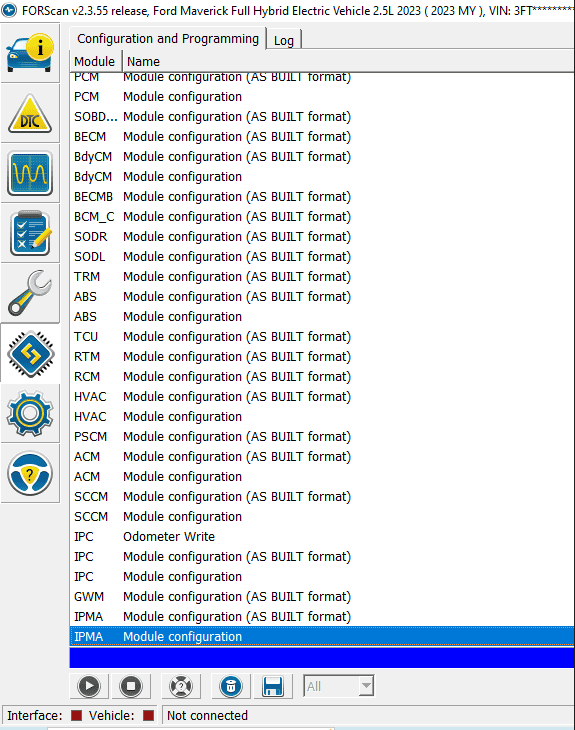
2. Select the IPMA Module Configuration (Standard, NOT AS BUILT FORMAT)
3. Click the Play > icon
4. I changed the following items by selecting each and clicking EDIT SELECTED
Traffic Sign Recognition (TSR) from DISABLED to Speed Limit Information Function (SLIF)
Traffic Sign Recognition Mode from DISABLED to Camera Data Only
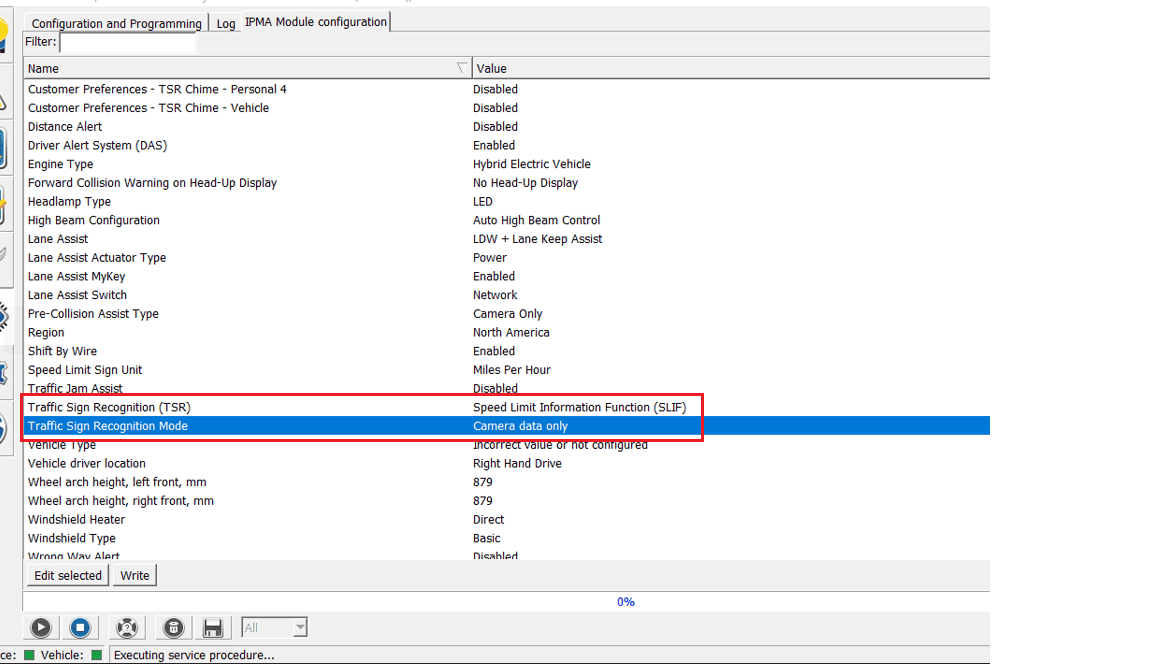
5. Click on WRITE
6. Verify the changes
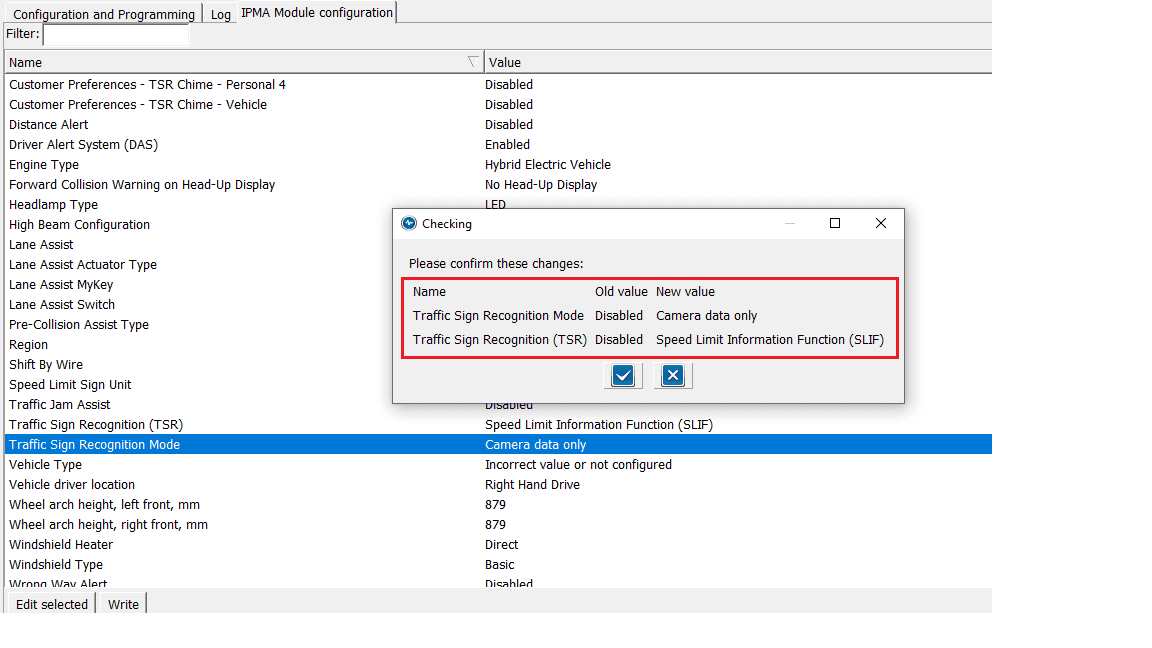
7. Click the Checkmark and powercycle the vehicle
8. Reconnect Forscan and select the IPC Module Configuration (Standard, NOT AS BUILT FORMAT)
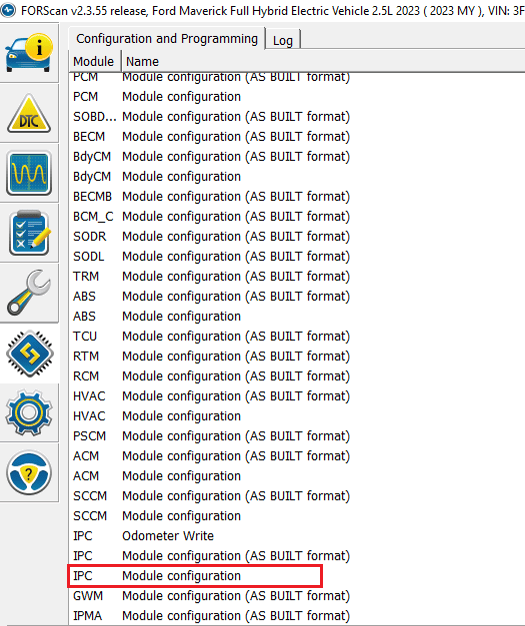
9. Click the Play > icon
10. I changed the following items by selecting each and clicking EDIT SELECTED
Traffic Sign Recognition (TSR) from DISABLED to ENABLED
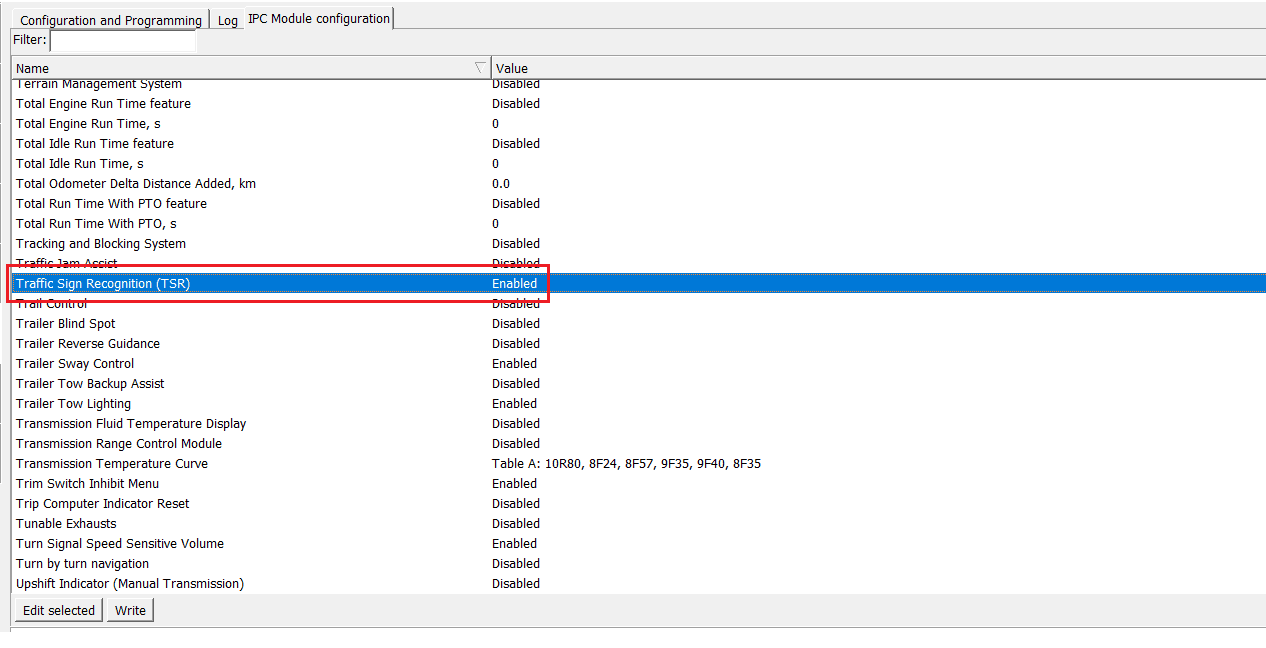
11. Click on WRITE
12. Verify the changes
13. Click the Checkmark and powercycle the vehicle
You should now be able to open the menu and should now see
Activate TSR
Activate Speed Warning
Speed Warning
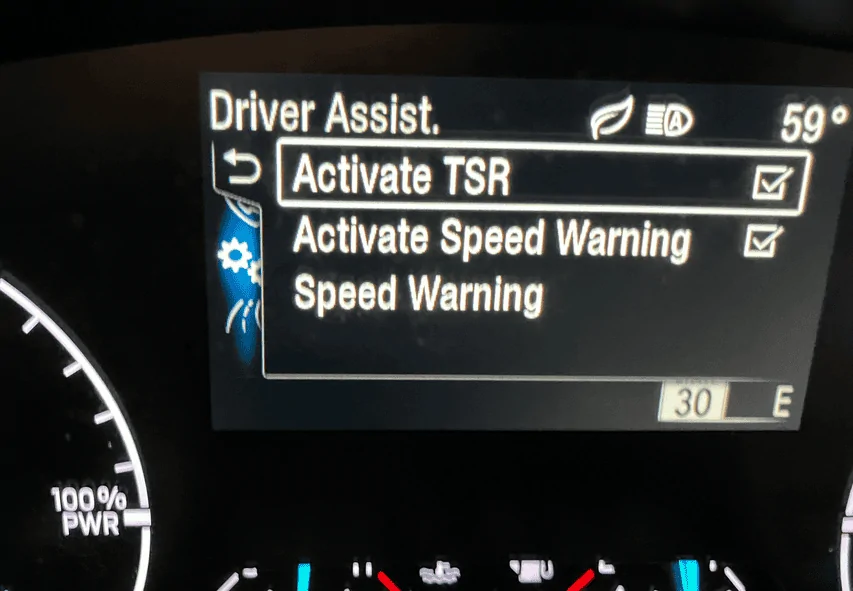
Speed warning allows you to set the speed limits to flash if you go over the set limit you configured
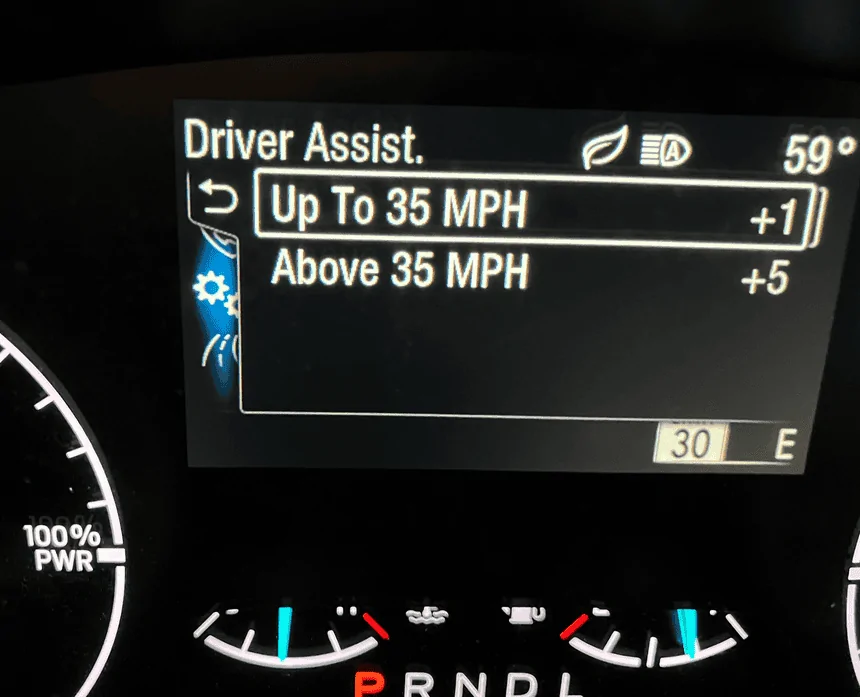
With this enabled, you should see the appropriate speed limits as the camera reads them
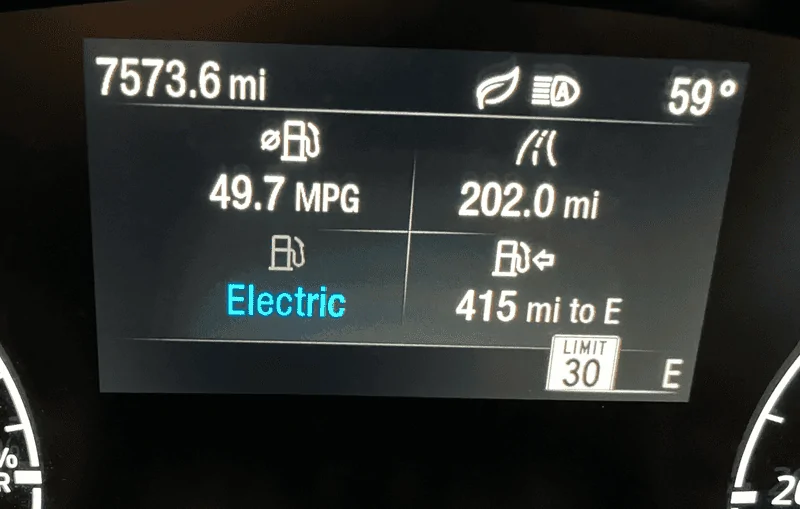
While I did not enable it using the other suggested methods, I can say this method works for my 2023 XLT Hybrid w/Luxury, Co-Pilot 360/Hitch. Seems to work very well based on my quick test. Recognized multiple speeds and displays them in the standard US format as I wanted.
I really prefer doing it this way because it was much easier than relying on various codes considering I don't have some sort of dictionary that identifies what each is other than what is posted in these forums. While those may be valid codes, I had 3 items I changed from DISABLED to ENABLED and can easily change them back if needed.
Again, make any changes at your own risk.
It could be due to trim variations like Lariat and XLT. In my experience, the speed limit sign fades away after some time, not necessarily within a few minutes. It transitions from a full sign to a partial one. If I don't come across another sign for about 5-10 minutes, it disappears. I believe this is intentional to avoid potential inaccuracies if you never encounter another sign. Interestingly, when I stop, turn off the vehicle, and restart, the last speed limit I passed still displays, suggesting a design choice. Good to hear it works on a 2024.Thanks for the tutorial! Confirmed working on a 2024.
Also, I've noticed the speed sign disappears after a few minutes instead of inverting the colors as I've seen in some videos from other Maverick owners. Any idea why that is?
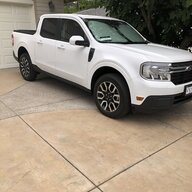
My 2024 hybrid Lariat displays TSR - traffic sign recogniton - only on the center console display screen, not the dash infront of the driver, when in I choose the "Nav" display screen. Is there a way for me to get the TSR to display in the dash display at all times without changing things in Forscan?I've been following these forums for a while and got my 2023 XLT Hybrid with the Luxury package on June 28, 2023. I noticed others were enabling Traffic Sign Recognition (TSR) in their vehicles, but I was hesitant because I couldn't find anyone who had tried it with a 2023 XLT Hybrid. I saw users with 2022 Hybrids, Lariats, and XL models, but I didn't want to take the risk.
A few weeks ago, I decided to give it a shot based on other posts. I encountered an issue with an incorrect Checksum when changing the code and trying to write. I canceled the process and commented on another post where someone mentioned that this issue is normal, and you can always change it back. I also noticed discrepancies between multiple posts regarding the numbers in IPMA and IPC where it was one value in one post, and a completely different value in another post.
After more research and watching videos on Ford vehicles, I'm happy to report that I successfully enabled all TSR functionality, including the over-speed alert, using US-formatted signs, and it took less than 10 minutes. I didn't follow the recommendations in other posts, and I encountered no errors using this method.
While many forum members suggest diving into the Mavericks As-Built section, I went a different route, influenced by content on YouTube and other websites. Here's what I opted for:
While this works for me, this post is for INFORMATIONAL PURPOSES ONLY. Any changes you make are AT YOUR OWN RISK!
First and foremost, make sure to back up your AS-BUILT configuration.
1. Scan for the Maverick Modules
2. Select the IPMA Module Configuration (Standard, NOT AS BUILT FORMAT)
3. Click the Play > icon
4. I changed the following items by selecting each and clicking EDIT SELECTED
Traffic Sign Recognition (TSR) from DISABLED to Speed Limit Information Function (SLIF)
Traffic Sign Recognition Mode from DISABLED to Camera Data Only
5. Click on WRITE
6. Verify the changes
7. Click the Checkmark and powercycle the vehicle
8. Reconnect Forscan and select the IPC Module Configuration (Standard, NOT AS BUILT FORMAT)
9. Click the Play > icon
10. I changed the following items by selecting each and clicking EDIT SELECTED
Traffic Sign Recognition (TSR) from DISABLED to ENABLED
11. Click on WRITE
12. Verify the changes
13. Click the Checkmark and powercycle the vehicle
You should now be able to open the menu and should now see
Activate TSR
Activate Speed Warning
Speed Warning
Speed warning allows you to set the speed limits to flash if you go over the set limit you configured
With this enabled, you should see the appropriate speed limits as the camera reads them
While I did not enable it using the other suggested methods, I can say this method works for my 2023 XLT Hybrid w/Luxury, Co-Pilot 360/Hitch. Seems to work very well based on my quick test. Recognized multiple speeds and displays them in the standard US format as I wanted.
I really prefer doing it this way because it was much easier than relying on various codes considering I don't have some sort of dictionary that identifies what each is other than what is posted in these forums. While those may be valid codes, I had 3 items I changed from DISABLED to ENABLED and can easily change them back if needed.
Again, make any changes at your own risk.