

Sponsored

Wireless Android Auto stopped working

zBernie

2.5L Hybrid
Well-known member
First Name
Bernie
Joined
Sep 6, 2021
Threads
60
Messages
318
Reaction score
250
Location
Northeast
Vehicle(s)
Hyundai Sonata
Engine
2.5L Hybrid
I have a Motorola MA1 which worked well for almost two weeks. Suddenly it does not display Android Auto on my XLT's screen. The phone always says "Continue Android Auto using your car's screen". But it no longer displays on the truck's screen. I've tried the following fixes:

-Restarted my phone.
-In my phone's Bluetooth selected "Forget" the MA1.
-Unpaired then paired my phone with the MA1 (Several times).
-Reset the MA1 to factory defaults.
-Ensured the Ford audio was updated (See below).

Can anyone suggest any other fixes?
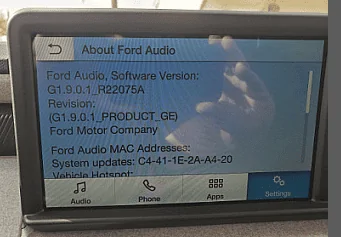

Ford Maverick Wireless Android Auto stopped working 1668470252370


-Thanks
Sponsored

 
OP
OP

zBernie

2.5L Hybrid
Well-known member
First Name
Bernie
Joined
Sep 6, 2021
Threads
60
Messages
318
Reaction score
250
Location
Northeast
Vehicle(s)
Hyundai Sonata
Engine
2.5L Hybrid
I have a Motorola MA1 which worked well for almost two weeks. Suddenly it does not display Android Auto on my XLT's screen. The phone always says "Continue Android Auto using your car's screen". But it no longer displays on the truck's screen. I've tried the following fixes:

-Restarted my phone.
-In my phone's Bluetooth selected "Forget" the MA1.
-Unpaired then paired my phone with the MA1 (Several times).
-Reset the MA1 to factory defaults.
-Ensured the Ford audio was updated (See below).

Can anyone suggest any other fixes?


1668470252370.png


-Thanks

I got it working using steps 1 to 10 below. This is from the MA1 support website at the following link. Thought I would share it in case anyone else has this issue.

Motorola Sound Support

  • Wireless Android Auto was working before, but now it's not. What do I do?

    First, confirm that the Android Auto app on your phone is updated to the very latest version available in the Google Play Store.

    Next, confirm that your phone is connected to the car for hands-free calling (Bluetooth HFP), simply by placing or receiving a phone call. A properly handled Bluetooth HFP phone call will use the car's own speakers and microphone.

    Finally, confirm that the LED light on MA1 is pulsing green. If wireless Android Auto has not started after several minutes, reboot the phone, unplug/re-plug the dongle, and power cycle the car's infotainment system, preferably all at once.

    If the above steps do not resolve your issue, then take the following steps to completely reset your connection. Be sure to follow every step, in sequence:

    1. Unplug the MA1 from your car's USB port.

    2. On your car screen, navigate to the Bluetooth phone list, and 'forget' or 'delete' all paired phones.

    3. On your phone, navigate to the system settings for Bluetooth, and 'forget' or 'delete' BOTH the paired car AND the paired MA1 (which will appear in the list as AndroidAuto-XXXX).

    4. On your phone, navigate to the system settings for Apps; select Android Auto; and under 'Storage', tap 'Clear data' (different phone brands may present this slightly differently).

    5. Start your car, and plug in your phone with a USB cable. Navigate through the 'Welcome to Android Auto' screens on your car display, as if you were connecting for the very first time.

    6. Once Google Maps appears on your car display, place a phone call to verify that Android Auto has automatically re-connected your phone for hands-free calling over the car speakers.

    7. Unplug your phone from the car and re-plug the MA1 into that same USB port. Observe the LED light, which should initially shine solid white. (Your phone will remain connected to the car over Bluetooth for hands-free calling; this is expected. Do not reboot your phone.)

    8. Once the LED light begins pulsing green, immediately press and hold the button on the side of the MA1. Keep it depressed for approximately 45 seconds, during which the LED light will run through a series of color changes, first flashing blue, then flashing red, then alternating colors, then off briefly, then solid red.

    9. Only after the LED light turns solid red, release the button on the side of the MA1, unplug the MA1, and then re-plug it into the same USB port. Observe the LED light, which should initially shine solid white.

    10. Once the LED light begins flashing blue, then, on your phone, navigate again to the system settings for Bluetooth, and scan for new Bluetooth devices; MA1 will appear in the list as AndroidAuto-XXXX. Pair your phone with the MA1. The LED light should begin pulsing green, and wireless Android should appear on your car display within 90 seconds.


Top